
Where to find Cheap Church Podcast File Storage
In addition to setting up your WordPress Installation and submitting your Podcast feed to iTunes, Google Play and Stitcher – you will also need to decide on an online location for your church Podcast files.
In the first steps of the process you either setup a Website Hosting account or identified that you already had access to Website Hosting. That hosting account should now be hosting the files that make up your WordPress installation.
It would be tempting to just create a Podcast folder inside of your Website Hosting account and upload your audio or video Podcast files there. But in most cases that would be a mistake.
If you know that not very many people will be listening to or watching your Podcast you may be able to get by with this. But the issue is that if your Podcast becomes more popular you will be using more bandwidth from your website host than they will allow for the hosting account size you purchased.
If you are using a shared hosting account where your website shares resources with other websites on the same server they can shut your website down and say that you are using too much resources. This would be a similar situation that could happen if your site was featured on the news or a nation-wide TV show where you experienced a huge increase in traffic in a very short period of time.
It is a similar issue with website graphics. A best practice when developing websites is to have the graphics and media hosted somewhere other than your actual website hosting. It makes your website faster by not having to load the WordPress or site installation and the graphics or video all from the same hosting location.
Where should you host your Church Podcast Files?
There are many options that you could find and use to host your church Podcast files.
The issue is that the ones that first come to mind as free online file storage do not do a great job of giving iTunes, Google Play and Stitcher the file type they need to consistently serve the file to your Podcast feed.
I thought I found a workaround so that Google Drive could be used for Podcast hosting. It worked for awhile, but something changed and it stopped working. That is the issue. If something changes or stops working because of a change in Google or Dropbox or whatever your files will stop working.
Our recommendation is to use the extremely cheap Amazon S3 to host your Podcast files.
You can also use this to host your graphics and images from your website and then place the Amazon S3 links back into the correct place on your site, which will help your website load faster.
This is not a completely free option, although you currently do receive a few Gig of free standard storage for signing up. But even after that runs out it has been extremely cheap. Of course prices can change, but so far this hosting option has been extremely cheap and would be affordable for any size church.
For example, after running out of the free trial period Amazon S3 charges were around a $1 or $2 per month for a Podcast in a church of around 700. That was awhile ago, but the prices have remained very low and similar to this. Plus, this type of storage consistently works for Podcasts, so it is worth it to not have to worry about your links not working or getting your site shut down because of using to much website hosting bandwidth.
How To Setup Amazon S3 for Podcasting
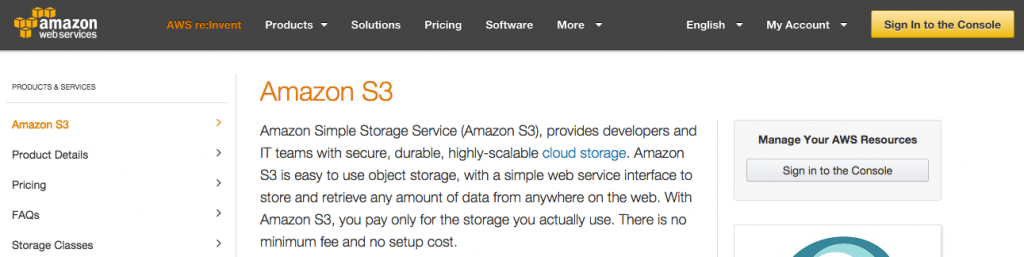
#1 – Go to Amazon.com/S3 and login with a church Amazon account to setup your S3 account.
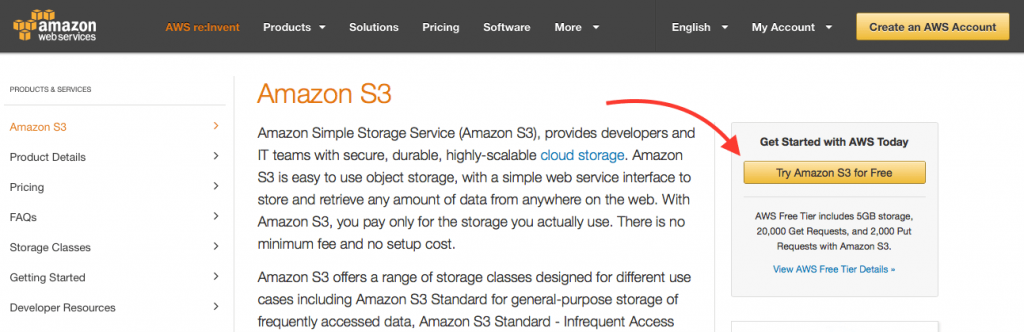
#2 – Once the account is setup and verified, sign in. Signing in to Amazon S3 can be a little confusing. Go to the Amazon S3 site then click on “Sign In to the Console” in the upper right-hand corner and then login.
#3 – Connect a Church Credit Card to the account by clicking on the name of the account in the upper right-hand corner. Click on “Billing and Cost Management” On the left click on Payment Methods and then add a church card to ensure that your files will not get cut off due to lack of payment. Again, the charges should be low, but you will still need to have a credit card connected to the account.
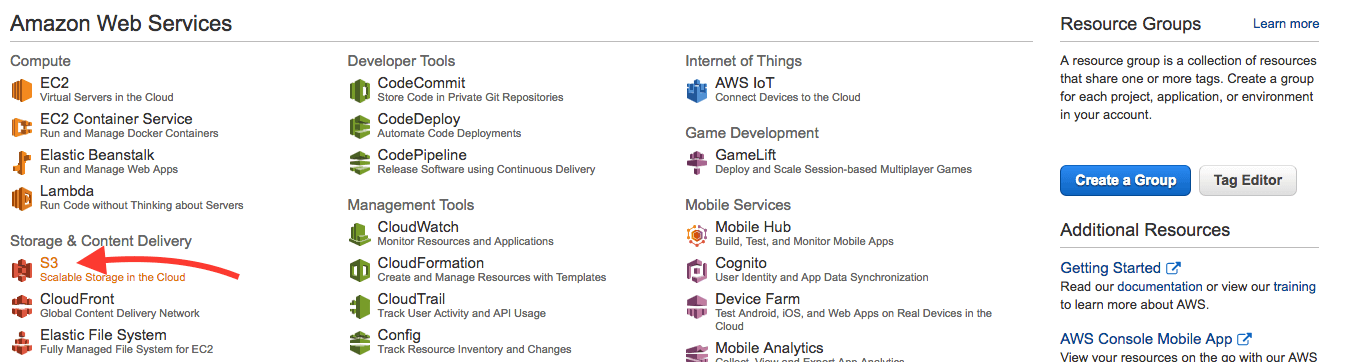
#4 – After logging in, click on “Services” toward the top left, then find S3 on the list and click on it.
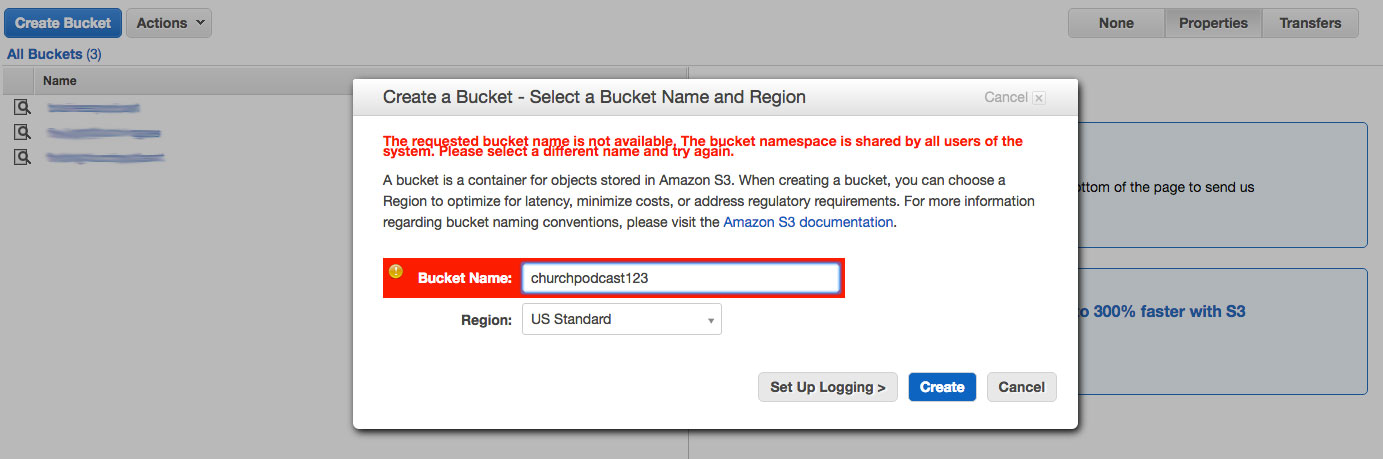
#5 – Create and Name a Bucket, then choose a hosting region location. The name you choose has to be something that no one else in their system has chosen for a bucket name. You will need to come up with something unique for your church. You will also need to choose a hosting region. If you are in the US, I would simply choose somewhere in the United States.
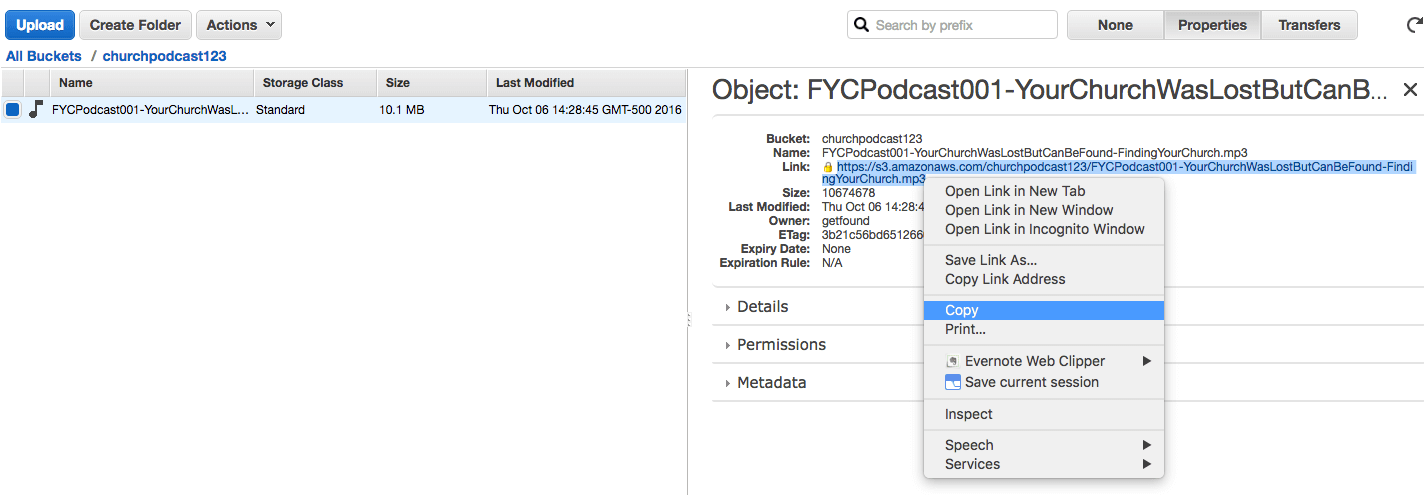
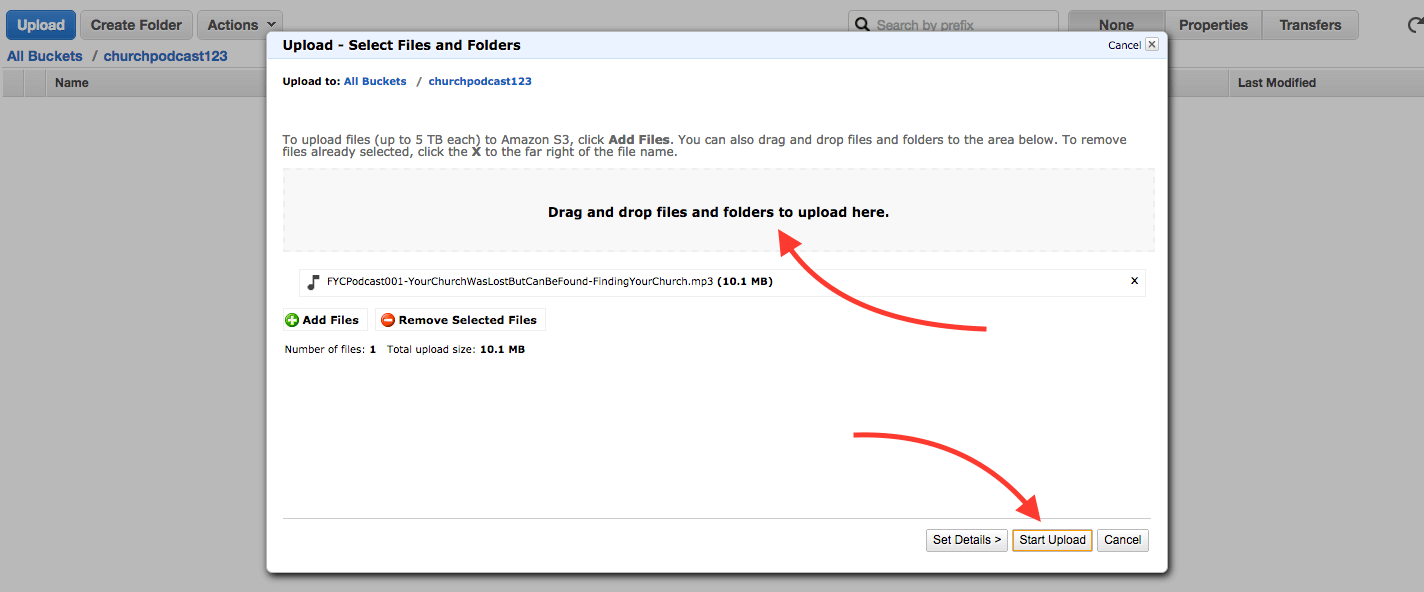
#6 – Upload your Podcast files into the Bucket. Once you are logged in and inside the Bucket section simply click the “Upload” button, drag in your file and click “Start Upload”.
#7 – Make your files Public.
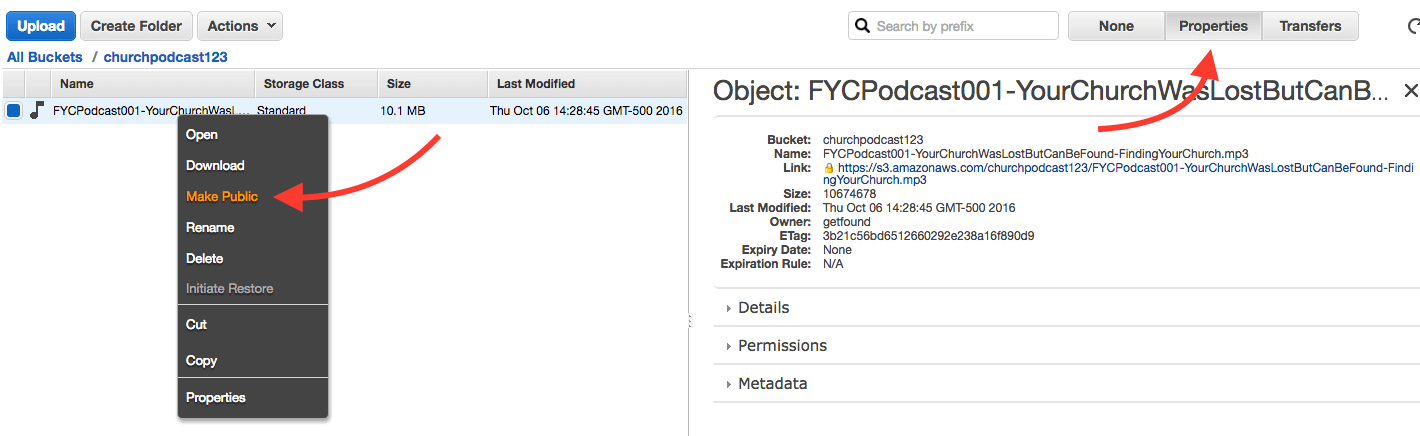
#8 – Go to properties and right click on the link and copy it. Then go to your WordPress installation and place the link in appropriate spot on your website depending on which Podcasting Plugin you choose. The Series Engine WordPress Plugin will add new sermons in the Series Engine area of the site, and Blubrry will add new Podcast files by scrolling down under a new blog post into the Podcast Section of the post creator.