

Claim & Optimize Your Google Business Page and Google Maps
Now that you understand Google Business Pages & Maps a little better, it is time to claim and optimize yours and GET FOUND.
Steps to Claiming & Optimizing your Google Business Page & Maps
Step 1: Gather your Church Contact Information, Logo and 10 quality Pictures
You will want to begin using your Local Promotion Resource Document found here that is designed to be a document to help you keep all of your information including contact info and account logins in one place.
You will need this information to completely fill in and optimize your Google Business Page & Maps listing as well as your other Local Business Directory listings, so be sure to have that available during the process.
If you do not want to use that document you can choose to create your own system using something like Google Drive or Evernote to keep all of your contact information and account logins as it is important to have that easily accessible in the future. The main thing is to create a system that keeps everything in one place.
Your Church Logo, a YouTube Video link and 10 quality pictures is also important to gather before beginning the claiming and optimizing process.
Step 2: Search for existing Google Business Pages
Even if you have never updated or claimed anything on Google Business or Maps for your Church there is probably a listing or two already created.
This can happen for a few reasons.
- Google automatically creates pages for as many businesses and churches as possible to add to the Google database. They are there waiting to be claimed by the business owner so correct and updated information can be added.
- You or someone in the past have claimed your Google Business page and forgotten about it. This may have even been back when Google Business was called Google Places. Things have changed and your listing needs to be updated.
- There may be duplicate listings because you or someone else created one in the past, forgot about it, then created a new one. Even if you know you have a claimed Google Business and Maps listing that you are currently using, you should still check to see if there are duplicates out there, then claim them and delete them.
Search in Google for your Church Name, City and then add Google Business to the search term. So you would search for something like Journey Church Kansas City, Missouri Google Business
then see what comes up. [Obviously use your Church Name and City in place of Journey Church]. You can also do this on Google Maps directly in addition to regular Google search.
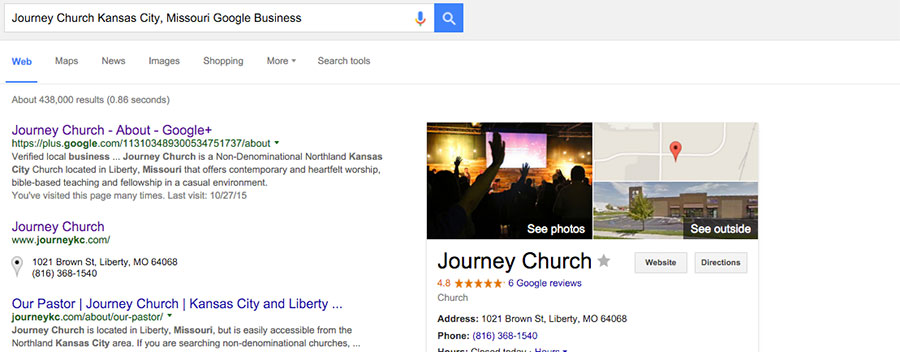
Click on all of the Google Business pages that you find connected to your church, and add those links to your Local Promotion Resource Document or other location where you are keeping your information.
Remember the purpose of the document is to keep everything you are working on in one place. Even though you will eventually delete the duplicate listing after you claim it, you still want to keep it here until that happens.
Keep EVERYTHING in one place for as long as you need it.
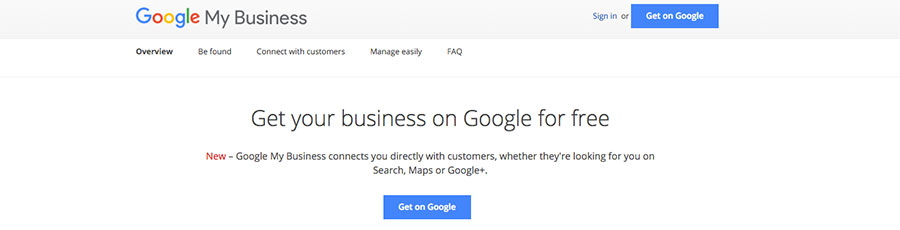
Step 3: Go to www.Google.com/Business then click “Get on Google”, Login with your Church Gmail Marketing account and search for your church.
Search for your church by name and address on to see if it finds the listings that have already been created.
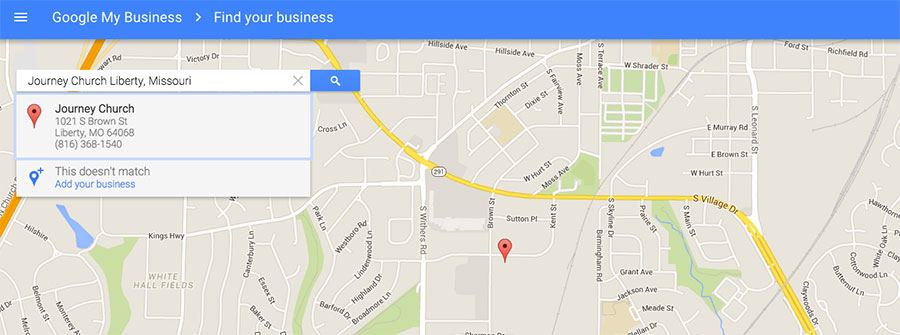
If there is a Google autogenerated or past created Google Business page it should show up here. These should match the Google Business pages you found when you did your Google Search in the previous step.
The reason we Googled earlier is to make sure we have found all of the pages connected to our church. These should up in a Google Search possibly even more than a Google Business Search. The reason for this is because of your past church names and addresses.
Doing both the Google Search and the Google Business/Maps Search will help you make sure you find all of the pages out there connected to your church.
There are a lot of different things that can show up when you do this search on Google Business.
-
Nothing could show up.
If that is the case you will need to click the link to “Add your Business” and follow the steps to claim your location, add your contact information and verify your listing with a phone call or Google postcard PIN number. -
Your ONE correct location could show up.
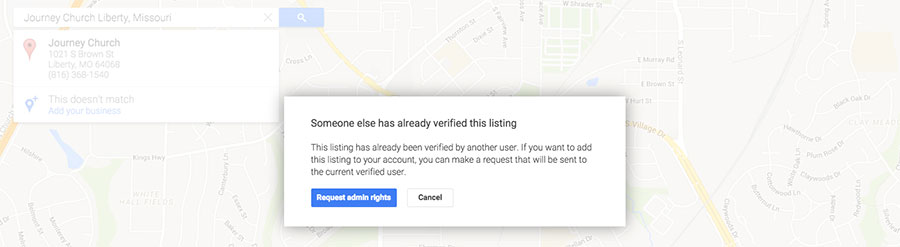
If that is the case you will want to click your Church Name. Unless you have control of this listing, it will say either that someone else has already claimed it or it needs to be claimed. You will click to “Request Admin Rights” and follow the steps to claim your location, add your contact information and verify your listing with a phone call or Google postcard PIN number. -
Multiple Google Business Page Listings could show up.
If that is the case you need to complete the verification process for ALL of them. Once you have control of them you can login and see the Google stats for each of your pages. Choose the one that is already getting the MOST traffic and optimize it. Delete the rest of the pages.
Step 4: Claim and Verify your listing with a PIN Number
You will have to complete a simple verification process to let Google know that you really do have authority to manage the church listing.
Google can change the verification process at any time, but typically you will have a choice for how you want to verify.
- Verify by Phone – The fastest way would be to get a phone call with a Google PIN and verify immediately as long as they offer that option to you.
- Verify by Postcard – The slow way is to have Google send your PIN number on a postcard. Sometimes in the past this has been the only verification option offered.
After you receive the PIN code either by phone or postcard, login to your Google Business account and enter the PIN number. You will then be able to update all of the information, and Google will begin displaying your changes in Google Search as long as it approves them.
Google can be very slow in displaying your new information, so you will have to be patient.
Are you running into trouble claiming and optimizing your Church Google Business Page? Check out the link below for help and support from Google.
>> Google Business Support Forum and Help Page
Step 5: Completely Fill In your Profile Information & Pictures
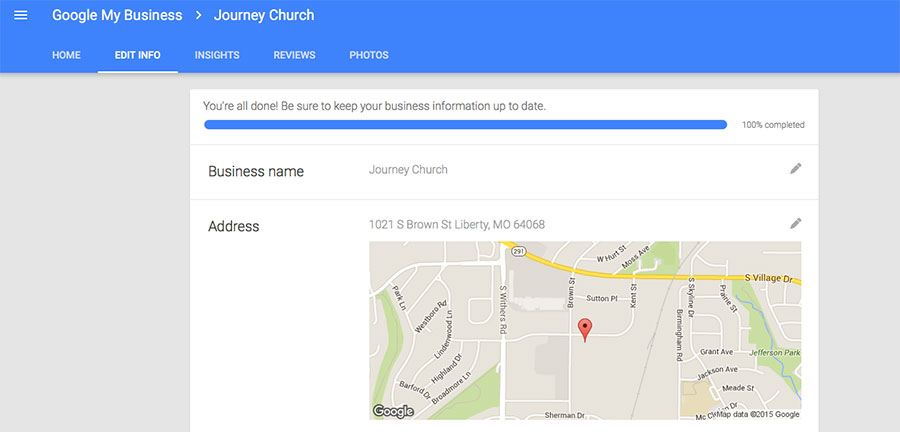
Click on the “Edit Info” button and fill in every area that you have an answer for. Google Business is designed for businesses, so every field may not apply, but fill in as much as you can.
Even though you most likely want to redirect people back to your Church Website HUB for specific Service Times, you also do not want to look CLOSED during Services. So you may be able to say that you are OPEN all day on Sunday and Wednesday evenings, or whenever your Services are held. This way you still look OPEN when people see your listing without giving out specific Service Times. Remember, if at all possible we only want our service times to be listed on our actual website so if we ever change them it is easy to make sure they are correct online.
Make sure you add your Church Logo, Header Graphic, 10 or more quality pictures and YouTube Video links as posts.
Your Google Business page functions like a Social Media type blog as well so you can add as much content as you want to make people feel connected to your Church. Plus, you can autopost your Social Media post to this page as well using .
Step 6: Get Positive Reviews!
After getting your Google Business Page/Maps listing verified and completed you will want to direct happy people in your church to your listing so they can leave a positive 5 star Google Review for your church.
The easiest way to tell people how to do that is to use the Google Maps App and not to try to figure out how to do it in a web browser. The reason for this is that it can be challenging in a web browser, plus if someone is using the Google Maps App on their mobile device they are already logged in with a valid Gmail account most likely so they can just leave the review without having to figure out how to login.
Not only does having a lot of positive Google Reviews help you with Google, but when real people find your Google listing it gives them proof that other real people love your church. That is a powerful help to move people from finding you online to actually visiting your church.