
How To Create FREE Church Social Media Graphics

A simple way to improve the online presence of you Church is to update your Social Media Profile Information and Graphics.
Many times this information is outdated.
Maybe you setup these profiles a long time ago and things in your Church have changed. Or, maybe you changed your Church Social Media profile graphics to match a Sermon Series that has been over for many months.
Sometimes the need to change is not even your fault.
Social Media sites as well as your YouTube Profile and Google Business page profiles regularly change requirements for their header graphic sizes.
This leaves you looking like you did not put effort into your social sites. The graphic you put in place that was perfect for one size now looks stretched or squeezed in the new size. Or, the site removed it altogether so there is just a blank box where your header should be.
You need to check and potentially change your Church Social Media Graphics
At the very least, you should login and go to each of your accounts and at least check to see how the graphics look.
Most likely even if they do not NEED to be changed, you will WANT to change them.
If it has been awhile since you have seen them, you will probably not like what you see. What looked great a few months ago, now usually makes you wonder what you were thinking when you created it right?
Because of the constant changes though, it is challenging to even know what size to make the new graphics without digging into the Help Section of each site. Nobody wants to do that.
Aki Libo-on with Search Engine Journal has created a “2016 Social Media Graphic Cheat Sheet” that provides an excellent visual view of the most used Social Media sites with Graphic sizes and how they are placed in the sites.
These graphics are useful because they help you make sure you are creating graphics for every space possible on each site.
Plus, they help you design Church Social Media Graphics for your actual posts. It not only shows you the profile sizes, but also the sizes you need to create the graphics for your posts so they will show perfectly on the sites as well.
FREE Graphics Editing Software with Social Media Graphic Templates
Knowing the pixel size for each type of graphic is helpful if you are using Photoshop as you will need to make these graphics from scratch.
It will even be helpful using the free graphics editing software mentioned below, as not all sizes have templates.
Canva.com is an excellent alternative to Photoshop for Churches to use. The best part is that it is currently FREE.
Not only is it free, but it has built in templates for most of the Social Media graphics sizes that you will need. If what you need it not offered as a template, you can create custom sized graphics as well using the guide from the Search Engine Journal.

Creating Social Media Graphics for your Church is Simple with Canva
1 – Create an account with any Email, or sign in using Gmail or Facebook.

You can create an account with any email address. But they have made it simple by allowing you to sign in using Gmail or Facebook.
It does not matter what you choose. You do need to know that if you use the automatic Gmail or Facebook sign in options it could make it challenging to sign in on your mobile device.
2 – Choose a Template to start your Graphic

When you first login you will see a list of a few templates, an option to create custom image sizes, a MORE button to display more template options, and a space where your completed projects will be stored for future use.
If you see what you need there, click on it. Otherwise you will want to use the MORE button for more templates, or create a custom image size.
After clicking MORE, you will see templates for nearly anything you will need for Church Communication.
Multiple Templates are available for…
- Social Media Posts
- Documents
- Blogging & EBooks
- Marketing Materials
- Social Media & Email Headers
- Events
- Ads for Social Media & Websites

3 – Customize your Graphic using the Image Dashboard
When you choose a Template, you will be taken to an Image Dashboard to customize your graphic.
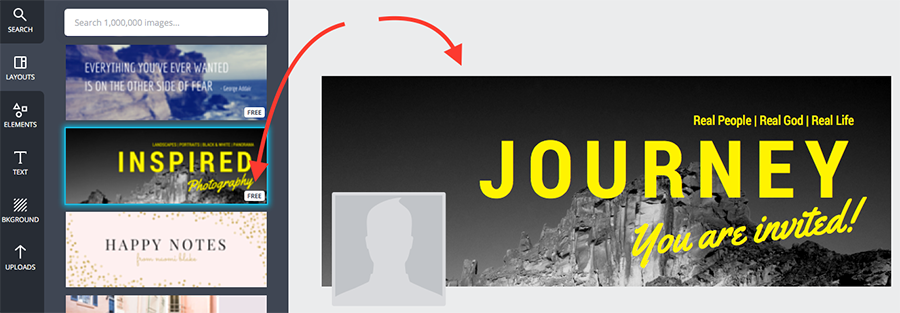
You have the option to customize…
- Layout
- Elements
- Text
- Background
Many of the built in choices are free. However, there are many options that you can choose to purchase and use in your graphic.
When you choose to purchase an element, you can only edit that graphic for 24 hours. It should still show up in your completed projects area, but it will not be editable after that point.
When all of the elements you use are free, the image file remains in your completed projects and can be edited or duplicated as often as you like. So you can create your own templates to use in the future.
One example of a template you may want to create is for Sermon Quote graphics for Social Media. Create one, and then leave it in your completed projects so all you have to do in the future is login and change the quote.
4 – Use the FREE Uploads Feature

There are many excellent free and paid graphics options on Canva. These may be a great fit for some of your projects.
What makes this tool extremely functional however is the “Uploads” feature. You can upload your own backgrounds and graphics, plus it stores your uploads in the Image Dashboard for future use.
Plus, if you only use free elements and your own from your uploads, your image will remain editable in your completed projects area.
5 – Create Custom Size Graphics
You will most likely run into situations where you need graphics that are not the size of the templates.
You can create virtually any size graphic you want by clicking the “Use custom dimensions” link in the top right corner. Add your width and height and you will be taken to the Image Dashboard just like when using a template.

6 – Download and Share your Graphics
There is a very clearly marked “Download” button that allows you to download a high quality or web quality version.
If you are creating graphics for the web, you can also compress the image further without losing much quality by using a website called www.TinyPNG.com. You can drop any .jpg or .png image file into the box on the site. It will compress it, then provide a new download link. This will help your site load faster as the image size should be smaller.
Hopefully this free tool will help improve your Church Graphics. For more FREE Resources that will help your Church become better found online click the link below.